
Browser workspace · engineering note
A real Linux workspace inside your browser
Glixo.ai can run project commands on your computer through the browser. Here is what runs locally, what still uses the network, and when a native machine is a better fit.
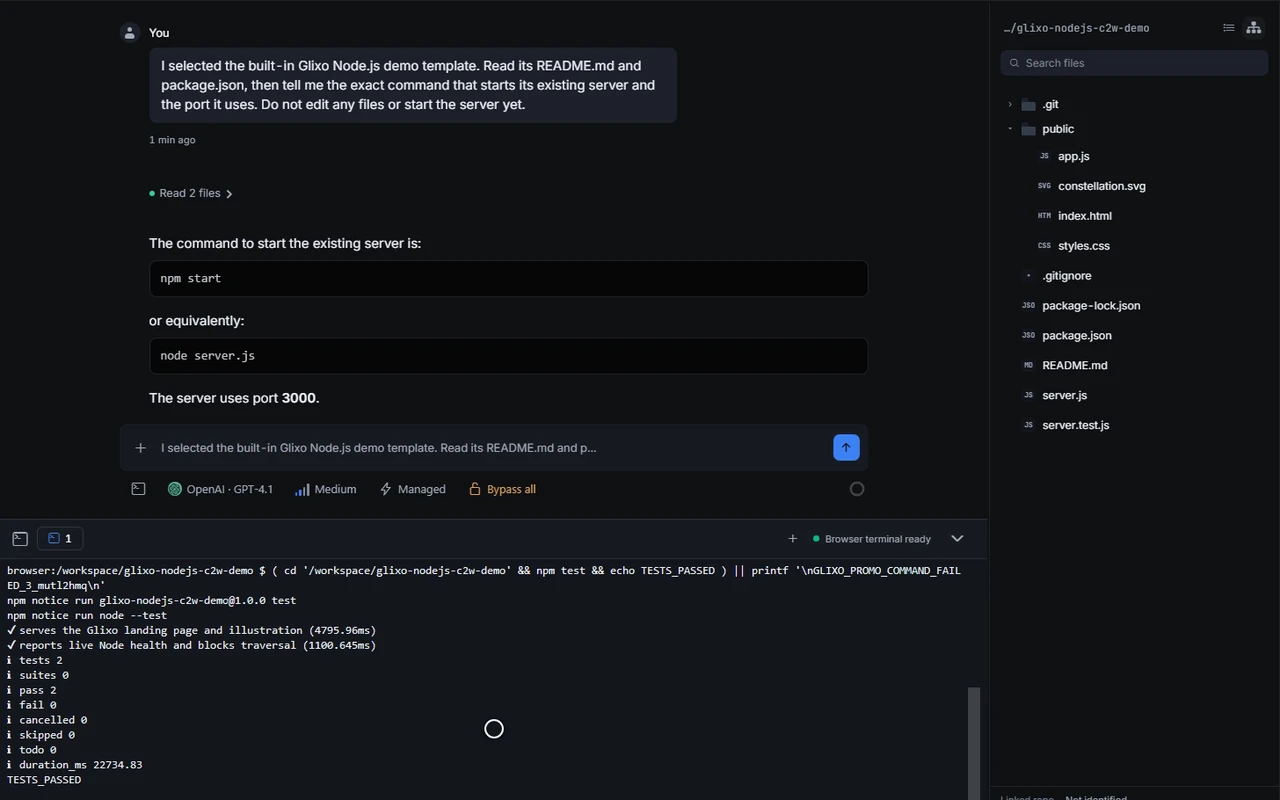
What the terminal is connected to
The browser workspace uses an Alpine Linux environment packaged by container2wasm. WebAssembly runs a TinyEMU emulator, which runs a RISC-V Linux guest. Bash, Git, ripgrep, Node.js and npm execute inside that guest.
That makes the terminal useful for real project work: inspect files, run a script, install a dependency or start a small web application. Glixo’s preview connects to the application inside the guest. A browser interface alone does not explain where code runs; this execution target is local to the browser.
Tomislav’s original August article explains the emulator change and the instruction compatibility fix that made Node usable.
A fast first preview is a different problem from npm
The next round of work reduced how much setup a visitor has to repeat. A prepared machine snapshot can resume a starter application, and a dependency-free starter avoids an install before the first preview. Incremental file synchronization reduces work after a command.
Those improvements do not remove CPU emulation from a new project’s dependency installation. A small starter and a large application have very different costs. The October follow-up includes the measurements, failed experiments and runtime rollback. Its timings describe those experiments, not a promise for your machine or today’s release.
Local execution does not mean everything is offline
The browser sandbox keeps project state in browser storage. That is a different workspace from a project on a paired desktop, and it does not use the normal server-backed session sync. Clearing site data or changing browser profiles can remove access to that local state. Keep important work in a repository or an exported copy.
Downloading the environment, reaching Git hosts and package registries, and calling a cloud model still need network services. Choosing where commands execute and choosing which model answers are separate decisions.
Start with a small, useful task
- Open Glixo.ai in a supported desktop browser and let the Linux environment finish preparing.
- Create or open a small project. In its terminal, run
pwdandnode --versionto check the workspace and runtime. - Ask the agent to explain a file or make one focused change. Review the result and run the project’s relevant check.
- Save the work, reopen the project, and confirm the files you need are there before relying on it for a larger task.
Modern desktop Chrome and Edge are the primary browser targets. First use downloads the runtime; larger installs remain slower under emulation, and a browser can suspend a background tab. For sustained builds or large dependencies, use the desktop app or a suitable paired machine.
The useful choice is the execution environment that fits the work. A browser workspace gives you a way to begin without installing the desktop client, while keeping ordinary files, commands and reviewable changes at the center.